Below is a slideshow i put together with my results. Underneath it I'll explain exactly what my findings were and also what each individual setting does to the game.
Results
Out of the 11 settings in Battlefield 3, i catagorized the settings based on the amount of change they made on the FPS:
- No Change: Effects Quality
- Minimal Change: Texture Quality, Terrain Quality, Terrain Decoration, Anti-aliasing Post, Anisotropic Filter
- Noticeable Change: Shadow Quality, Motion Blur, Ambient Occlusion
- Significant Change: Mesh Quality, Anti-aliasing Deferred
Number of FPS Change:
Texture Quality: 1
Shadow Quality: 5
Effects Quality: 0
Mesh Quality: 9
Terrain Quality: 1
Texture Decoration: 1
Anti-Aliasing Deferred: 13
Anti-Aliasing Post: 1
Motion Blur: 4
Anisotropic Filter: 1
Ambient Occlusion: 5
These results obviously are them being changed alone and without any change of the other settings. If i were to have changed multiple settings at a time, they would have compounded and the FPS would be higher.
This information shows that some settings have a greater effect on the FPS than others and using this information in combination with their effect on the game (which is discussed below) a person can help tweak the settings of their game to get the BEST possible performance while also getting the BEST visual experience in Battlefield 3 and any game for that matter.
BF3's Graphics Settings Explained
This information was taken from Harry Butler's blog post titled "Battlefield 3 Performance Analysis". I could not have explained it better myself.Texture Quality
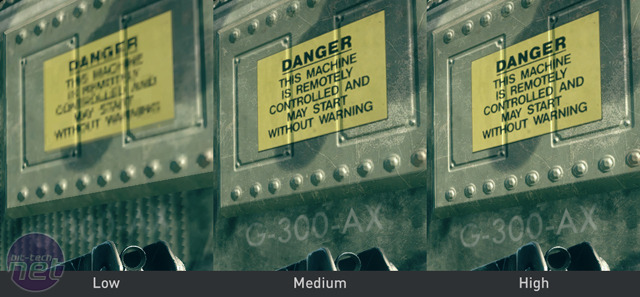
Self explanatory this one; the higher the settings, the higher quality of the textures. The below shot, courtesy of Nvidia, demonstrates this clearly. However, in practice there’s actually very little visual difference between Ultra, High, Medium and Low, as the game will still load the Ultra textures when you’re up close. Instead, this really lets you set the level of detail; at Low you’ll notice textures popping through the different detail levels; at Ultra you won’t.
Shadow Quality
Rather than compromise on the number of shadows or remove shadows completely, even at the lowest setting BF3’s environments, vehicles, soldiers and even incidental details such as boxes still cast dynamic shadows. However, the difference between the lowest and highest detail settings concern the quality and softness of the shadows; as you can see below, at Low detail the antennae’s shadow is stark and blocky, looking like it’s been painted onto the landscape. However, at Ultra detail the shadow is much smoother and looks like it’s a part of the game world.
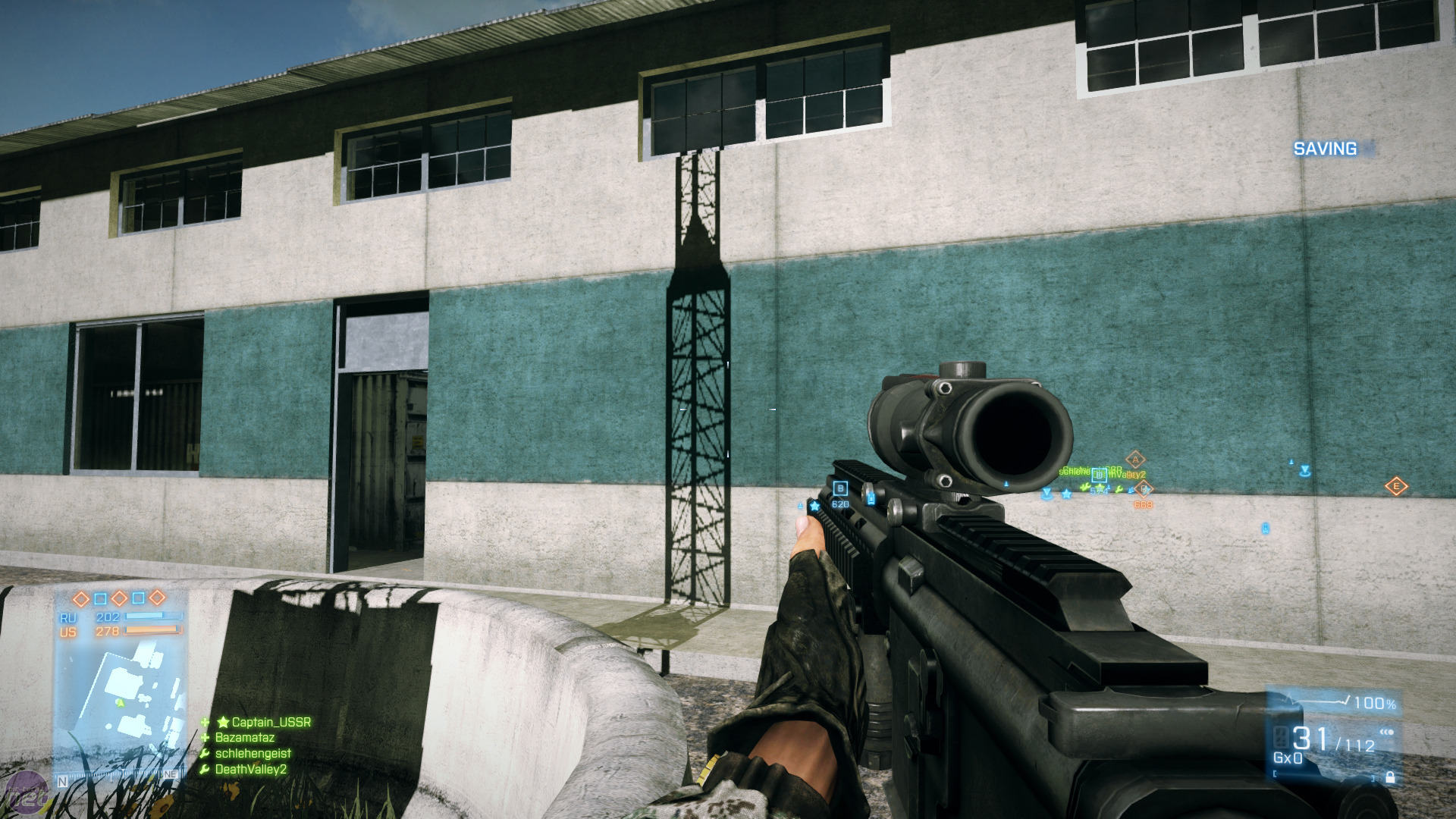
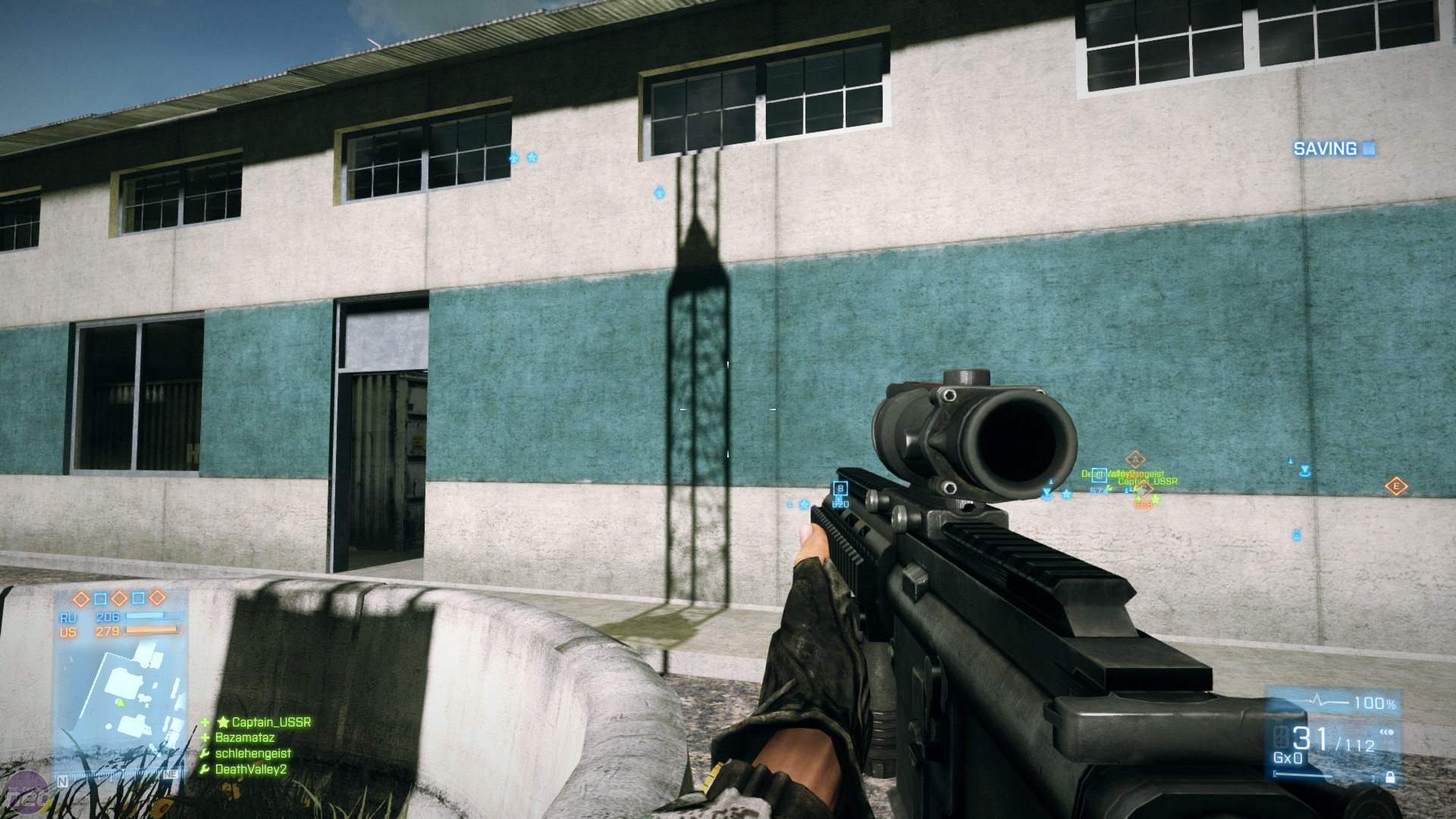
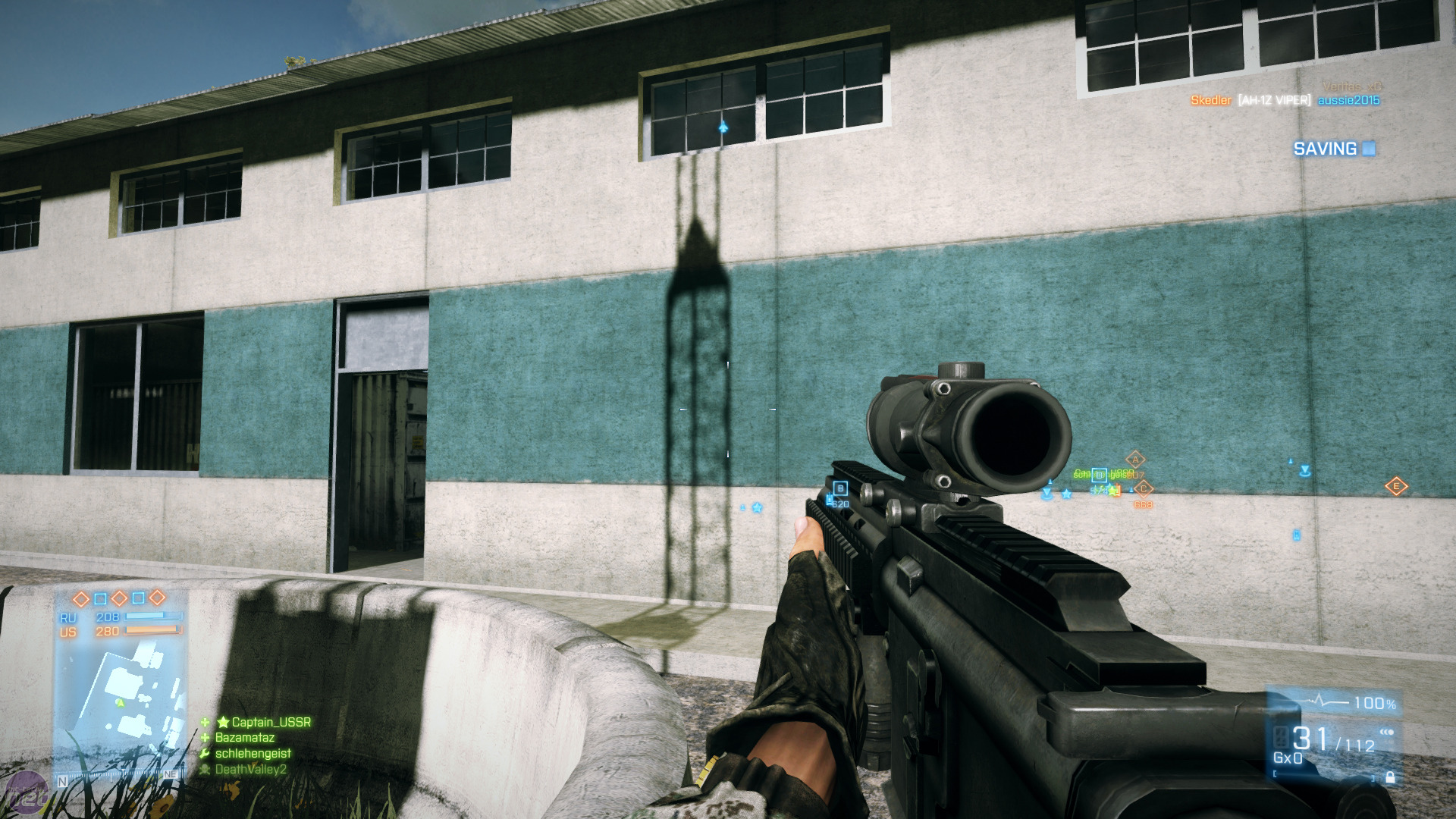

L to R: Shadow Quality in Battlefield 3 on Low, Medium, High and Ultra - Click to enlarge
Effects Quality
Being honest, we struggled to find a difference between the lowest and highest settings in the Effects Quality settings; explosions, debris, smoke and clouds all looked just as good at the lowest or highest settings.
Mesh Quality
Mesh Quality has a big impact on BF3’s visuals as, like Texture Quality, it adjusts the model detail depending on its proximity to the player. It’s a subtle effect, but you can see in the below images that, as the mesh detail drops, objects further way from the player become simpler. Most obvious is the tree in the middle of the screen and the chain link fence, both of which are much simpler at Low detail than they are at the Ultra setting.
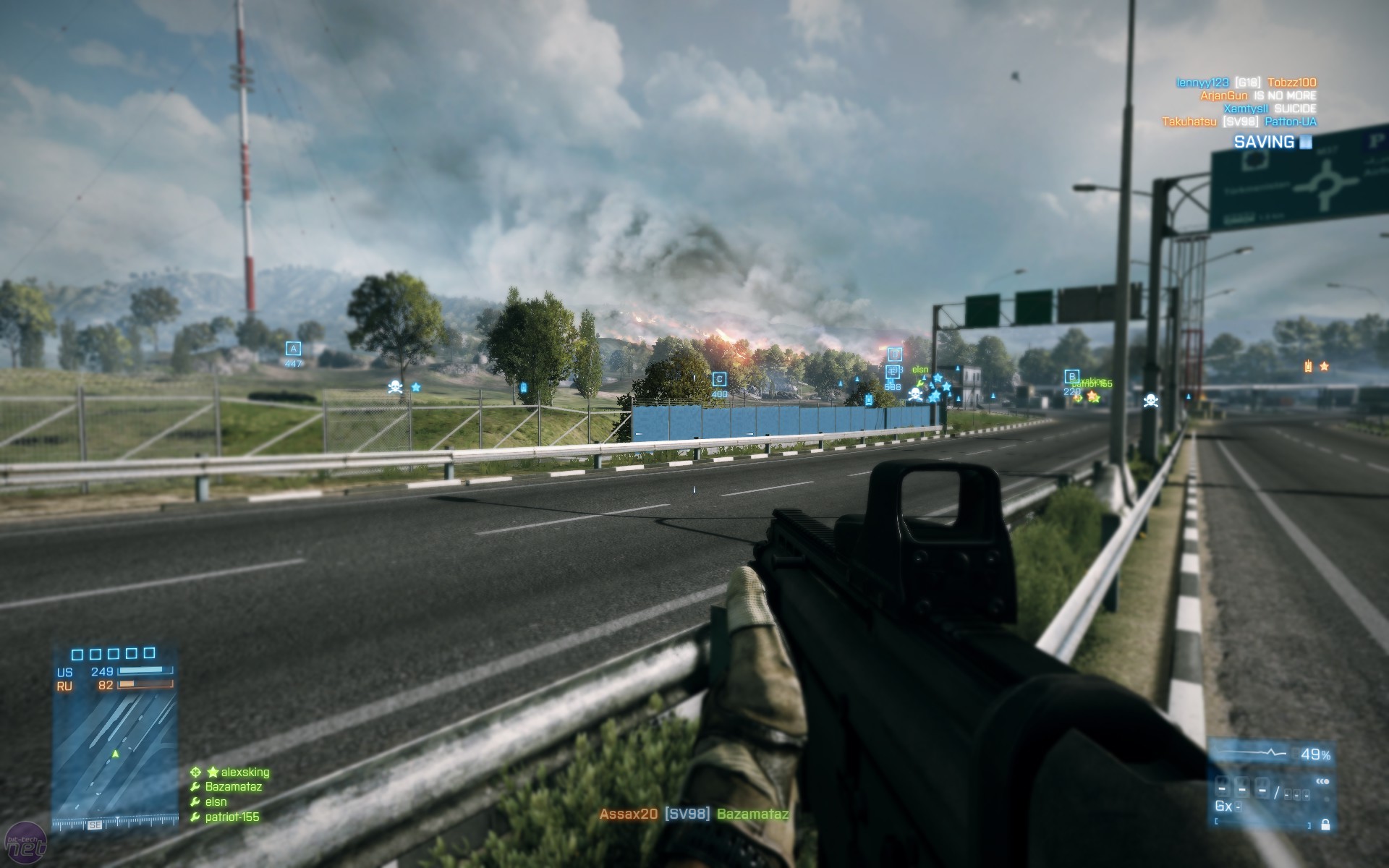
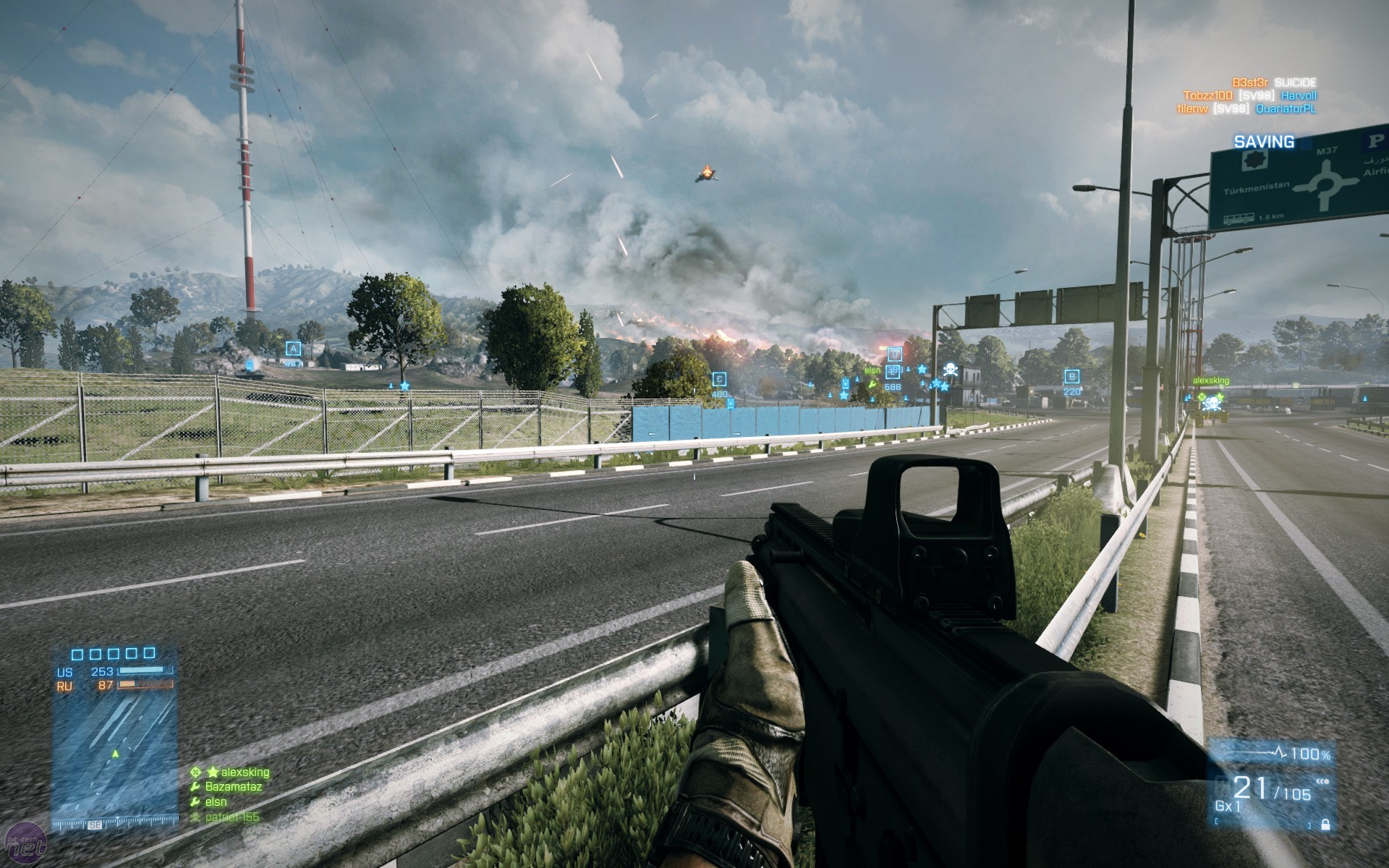
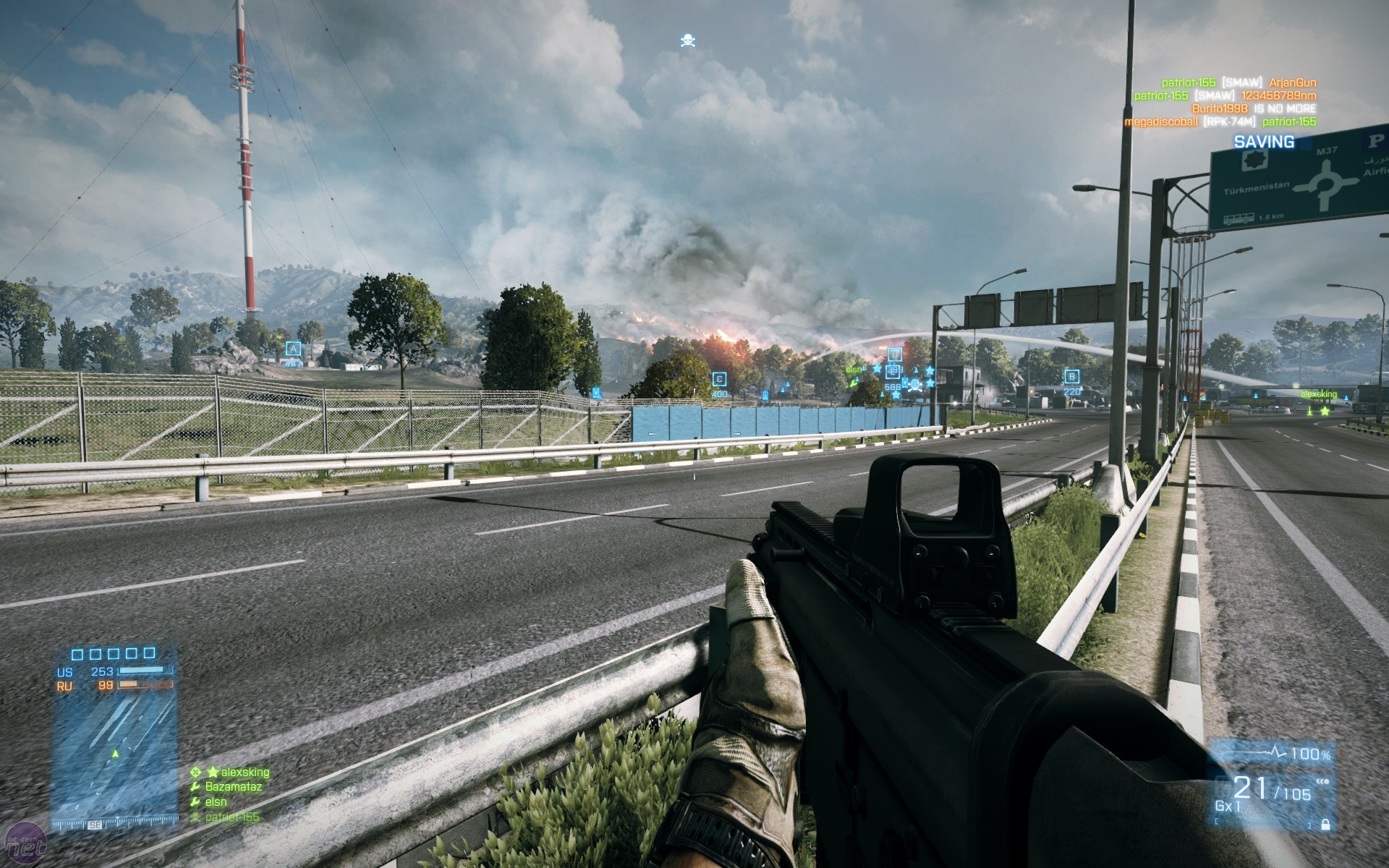
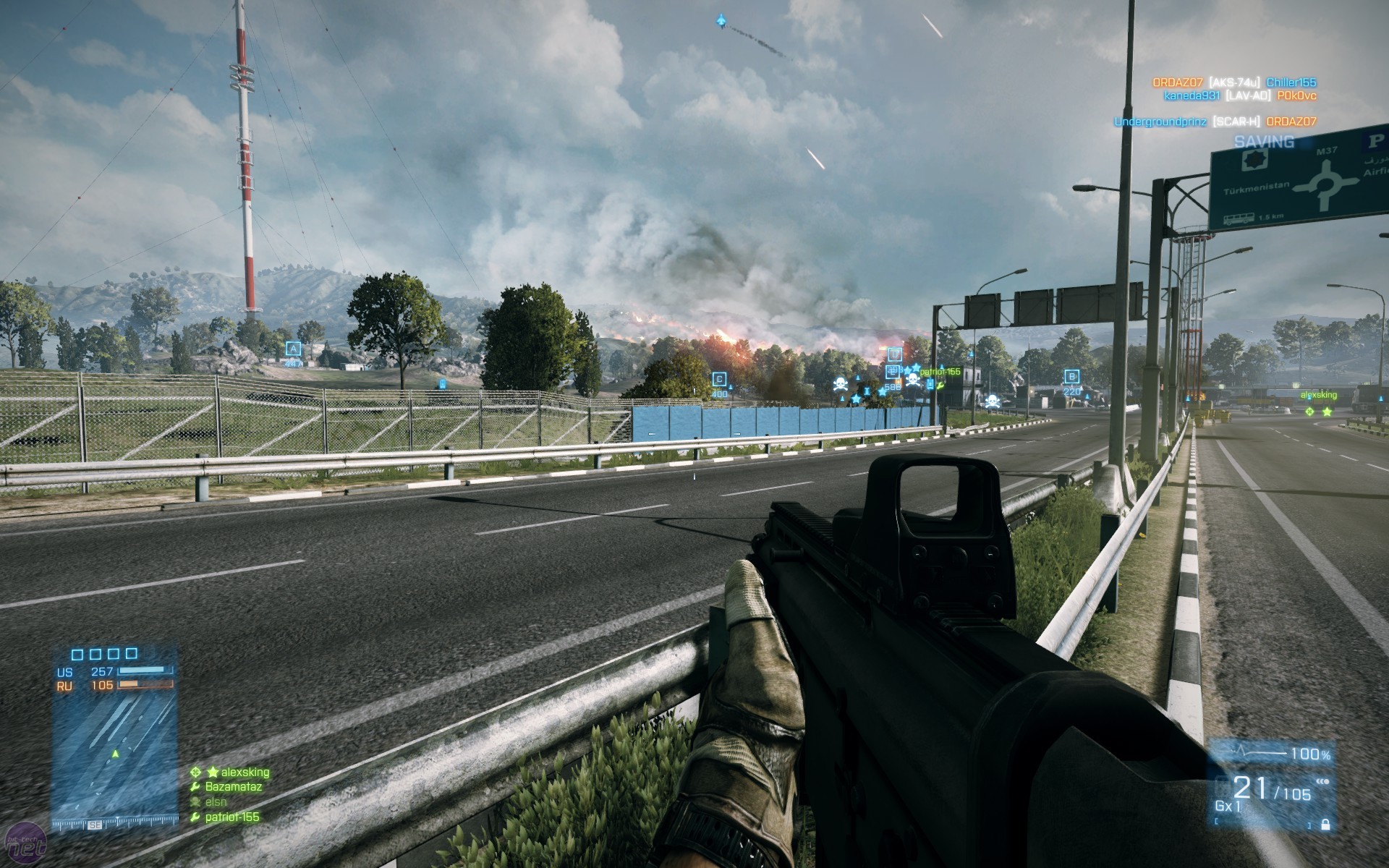
L to R: Mesh Quality in Battlefield 3 on Low, Medium, High and Ultra - Click to enlarge
Terrain Quality and Decoration
As with Effects Quality, we saw very little difference between the lowest and highest settings for these two detail options, even on large terrain and decoration-filled maps such as Caspian Border.
Anti-Aliasing Deferred
This is standard multi-sample anti-aliasing, reducing texture creep and generally smoothing edges and removing horrible jaggies to improve image quality. BF3 supports both 4x MSAA and 2x MSAA natively, but only enables 4x at the Ultra preset.
Anti-Aliasing Post
While not true anti-aliasing, this post-process effect has a similar purpose; smoothing edges and harsh lines and generally softening the visuals without the performance impact of full MSAA. It's not as effective at reducing and smoothing jaggies, though. BF3 offers four settings of Low, Medium, High and Ultra, but as we’ll see, the performance difference between Low and Ultra is fairly minimal.
Motion Blur
Another post-process effect, this time to give a more convincing feeling of movement and motion.
Anisotropic Filter
Anisotropic Filtering (AF) is the process of enhancing the visual quality of textures when they’re viewed from sloped viewing angles, correcting texture blurring and making textures, particularly at a distance, look clearer and more defined. Oddly for a game that prides itself on outdoor environments, BF3’s Low and Medium presets set AF to just 2x and 4x respectively; we’d recommend forcing this to 16x due to the minimal performance hit and significant improvement to visual quality, particularly on large open levels.
Ambient Occlusion
Ambient Occlusion (AO) is a method of applying shading and more authentic lighting effects to models, even if they're not directly lit by a light source. BF3 supports both SSAO or soft shadow ambient occlusion, and the more modern horizon-based ambient occlusion (HBAO). While this has in the past been a largely unnoticeable effect that saps performance, BF3 makes significant use of ambient occlusion, especially in its urban environments. As the image below from Nvidia shows, at Low detail settings the windows are starkly lit, while at Medium detail with SSAO the lighting is softened and shaded. At High and Ultra settings, HBAO improves the effect, applying smooth and believable shadowing to the scene.
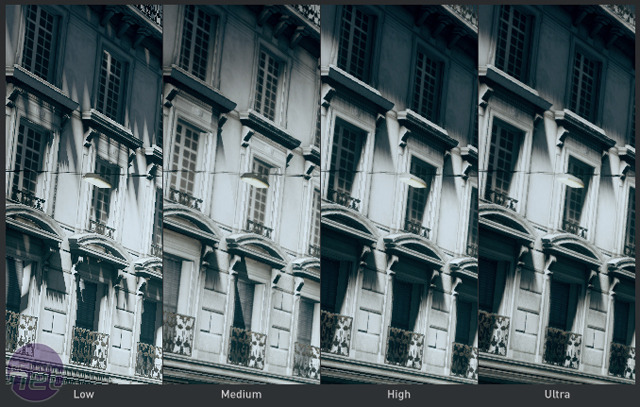
Ambient Occlusion in Battlefield 3 - Click to enlarge
Shiny PC Graphics in Battlefield 3
Below is a 5 part presentation that Johan Andersson, the Rendering Architect at DICE, made at GeForce LAN 6 which took place on the USS Hornet Aircraft Carrier, October 14th-16th. The presentation is titled "Shiny PC Graphics in Battlefield 3" and is focused on 5 Graphic Components: Objects, Lighting, Effects, Terrain, and Post-Processing.
I highly recommend anyone who is really interested in PC graphics and/or Battlefield 3 watch this hour long 5 part series. If you only watch one though, watch the last video. It correlates the best with my objective above and is only around 11 minutes.
As Fred Dutton summarized on his blog, this is what Andersson said in a nutshell:
Low = "lowest possible":
- Similar visuals to consoles, lots of stuff disabled
- Still contains the essential visuals not to be unfair in MP
- Minimum: GeForce 8800 GT 512 MB RAM
Medium = "good performance":
- Most important visual features enabled
High = "what the game is designed for":
- All major features on except MSAA (if you have DX11 card)
- Recommended: GeForce 560 TI or better
Ultra = "highest possible":
- Intended mainly for multiple GPU machines for 60+fps
"Ultra sort of cranks things up further," explained Andersson.
"The shadows are a little bit sharper, the terrain is a little bit more tessellated. And also a big setting we have on Ultra is anti-aliasing. We use our multi-sampling there which is really memory-consuming and performance-consuming in general.
"It looks better but it's not a giant step in visual quality. So if you have a multi-GPU machine, like a dual 580 or a dual 560 for that matter, you can run Ultra at 60fps."
Darn it...
Also, one thing from this video that i learned that somewhat bothered me was the ability to show an in game FPS counter in the top right and also a performance overlay, as pictured below.
After opening the console by pressing the " ` " key which is just above the TAB key, you can type:
- " Render.DrawFps 1 " to show the FPS counter
- " Render.PerfOverlayVisible 1 " to show the performance overlay

I never knew this was even possible and this would have been perfect for my previous post. but oh well.


